> ## Documentation Index
> Fetch the complete documentation index at: https://docs.bisonblock.ai/llms.txt
> Use this file to discover all available pages before exploring further.

# Onboarding

> Setting up then using Custodial Wallet

Our web console link follows:

* Sandbox: [https://console.sandbox.bisonblock.ai](https://console.sandbox.bisonblock.ai)
* Production: [https://console.bisonblock.ai](https://console.bisonblock.ai)

For any questions, please contact us at [support@bisonblock.ai](mailto:support@bisonblock.ai).

## I. Managing Accounts

<Steps>
  <Step title="Preparing">
    <Accordion defaultOpen="true" icon="1" iconType="duotone" title="2FA tools (Google Authenticator, Authy, Microsoft Authenticator, etc.)">
      The most common 2FA tool is Google Authenticator, aka GA. You can download it from the [App Store](https://apps.apple.com/app/id388497605) or Google [Play Store](https://play.google.com/store/apps/details?id=com.google.android.apps.authenticator2).


      <CardGroup cols={2}>
        <Card icon="apple" href="https://apps.apple.com/app/id388497605">
          <img src="https://mintcdn.com/bisontech/1W93cv28bnIdcgKT/images/qrcode-ga-appstore.png?fit=max&auto=format&n=1W93cv28bnIdcgKT&q=85&s=e8d5095807f178d421ac3943c52fea7c" width="400" height="400" data-path="images/qrcode-ga-appstore.png" />
        </Card>

        <Card icon="android" href="https://play.google.com/store/apps/details?id=com.google.android.apps.authenticator2">
          <img src="https://mintcdn.com/bisontech/1W93cv28bnIdcgKT/images/qrcode-ga-playstore.png?fit=max&auto=format&n=1W93cv28bnIdcgKT&q=85&s=42610ffdeeec45a3f1d0f0ed52f731b3" width="400" height="400" data-path="images/qrcode-ga-playstore.png" />
        </Card>
      </CardGroup>
    </Accordion>

    <Accordion icon="2" iconType="duotone" title="BisonBlock Auth app">
      BisonBlock Auth is a mobile app that provides a secure and convenient way to approval important operations. It's also on the [App Store](https://apps.apple.com/app/id6463193637) or Google [Play Store](https://play.google.com/store/apps/details?id=co.bisontech.auth).
      <CardGroup cols={2}>
        <Card icon="apple" href="https://apps.apple.com/app/id6463193637">
          <img src="https://mintcdn.com/bisontech/1W93cv28bnIdcgKT/images/qrcode-bba-appstore.png?fit=max&auto=format&n=1W93cv28bnIdcgKT&q=85&s=33f1480fdb81fb71804af44814762605" width="400" height="400" data-path="images/qrcode-bba-appstore.png" />
        </Card>

        <Card icon="android" href="https://play.google.com/store/apps/details?id=co.bisontech.auth">
          <img src="https://mintcdn.com/bisontech/1W93cv28bnIdcgKT/images/qrcode-bba-playstore.png?fit=max&auto=format&n=1W93cv28bnIdcgKT&q=85&s=a7905b65c3a06069c7001c7763c8659f" width="400" height="400" data-path="images/qrcode-bba-playstore.png" />
        </Card>
      </CardGroup>
    </Accordion>
  </Step>

  <Step title="Complete the first admin's setting up">
    After your account is created, you will be the first admin, and you must **active** your account by setting up your 2FA tools and BisonBlock Auth app.

    <Accordion icon="1" iconType="duotone" title="Find your activation email">
      Find the mail with subject `Activate Your Account`. It's sent to your email address when you register. <br />Click the activation link like `https://console.bisonblock.ai/register/...`.
      <Note>The link will be valid for 3 days after receiving this email. Please contact us if the link expires. To keep your account safe, DO NOT share the link with others!</Note>
    </Accordion>

    <Accordion icon="2" iconType="duotone" title="Set up login password and 2FA">
      On the page, you will be asked to set up your login password and bind with 2FA tools.
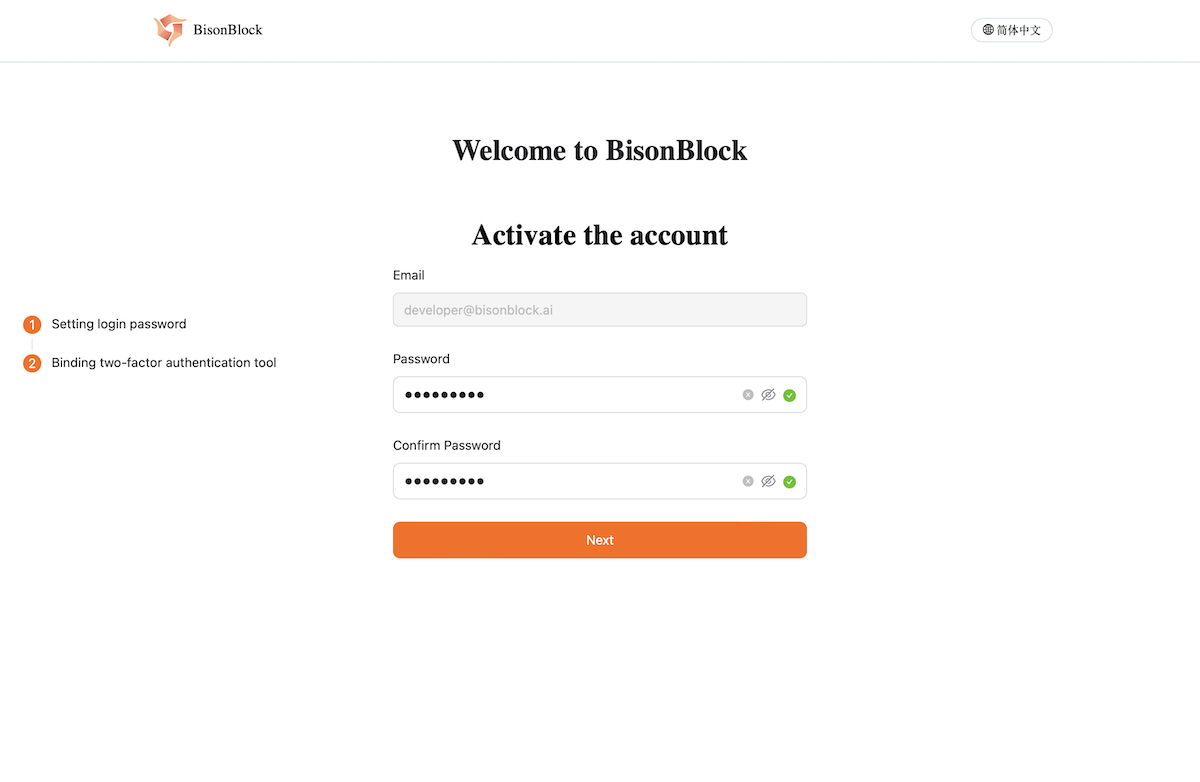
      <Frame caption="Set up your login password">
        <img src="https://mintcdn.com/bisontech/1W93cv28bnIdcgKT/images/tutorial-active-password.png?fit=max&auto=format&n=1W93cv28bnIdcgKT&q=85&s=fb129ccd80c8951d44da70ab144980df" width="1200" height="782" data-path="images/tutorial-active-password.png" />
      </Frame>

      <br />

      <Frame caption="Bind the 2FA after setting up login password">
        <img src="https://mintcdn.com/bisontech/1W93cv28bnIdcgKT/images/tutorial-active-2fa.png?fit=max&auto=format&n=1W93cv28bnIdcgKT&q=85&s=7548d79c73525d9bf9911eaad1163d56" width="1200" height="857" data-path="images/tutorial-active-2fa.png" />
      </Frame>

      <br />

      <Frame caption="Bind the 2FA after setting up login password">
        <img src="https://mintcdn.com/bisontech/1W93cv28bnIdcgKT/images/tutorial-active-2fa.png?fit=max&auto=format&n=1W93cv28bnIdcgKT&q=85&s=7548d79c73525d9bf9911eaad1163d56" width="1200" height="857" data-path="images/tutorial-active-2fa.png" />
      </Frame>
    </Accordion>

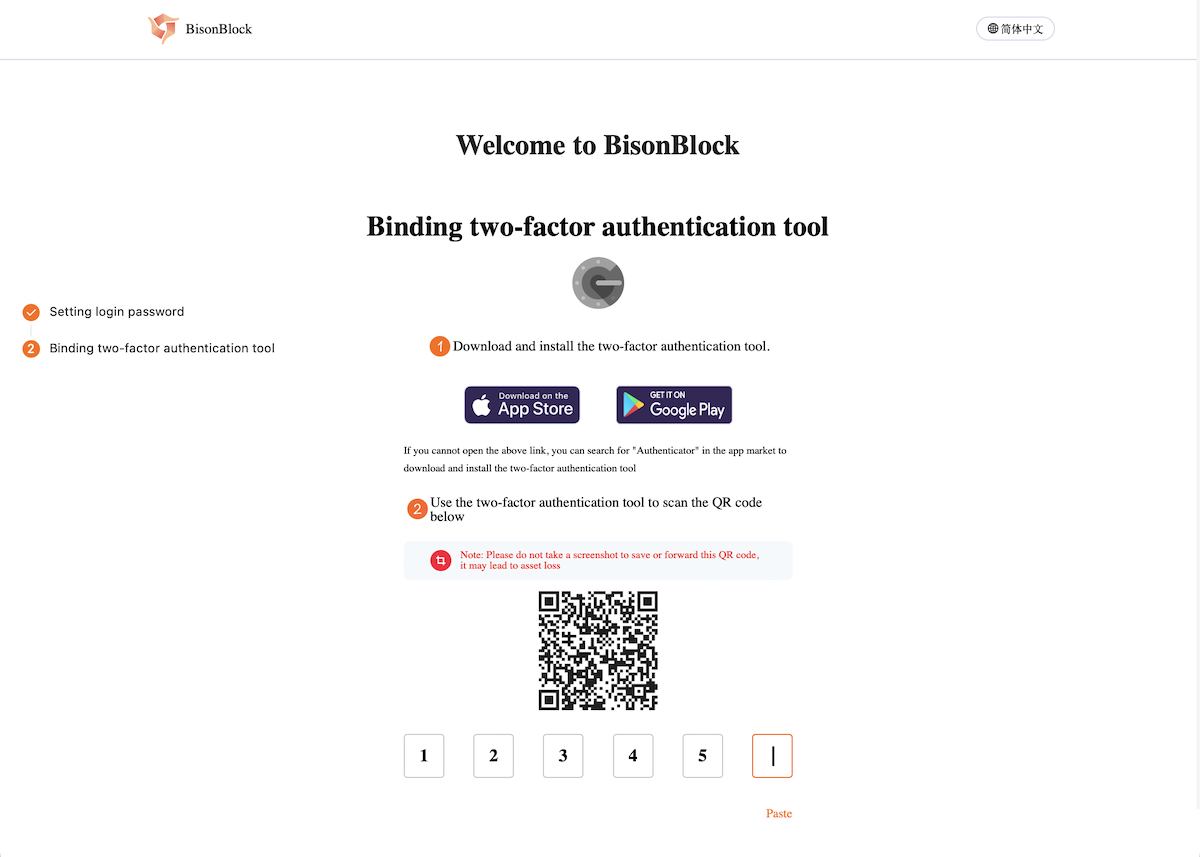
    <Accordion icon="3" iconType="duotone" title="Bind with BisonBlock Auth app">
      After setting up your password and 2FA, you will be asked to bind with BisonBlock Auth app. You must open the **BisonBlock Auth** app to scan the QR code, other than other tools like Google Authenticator.
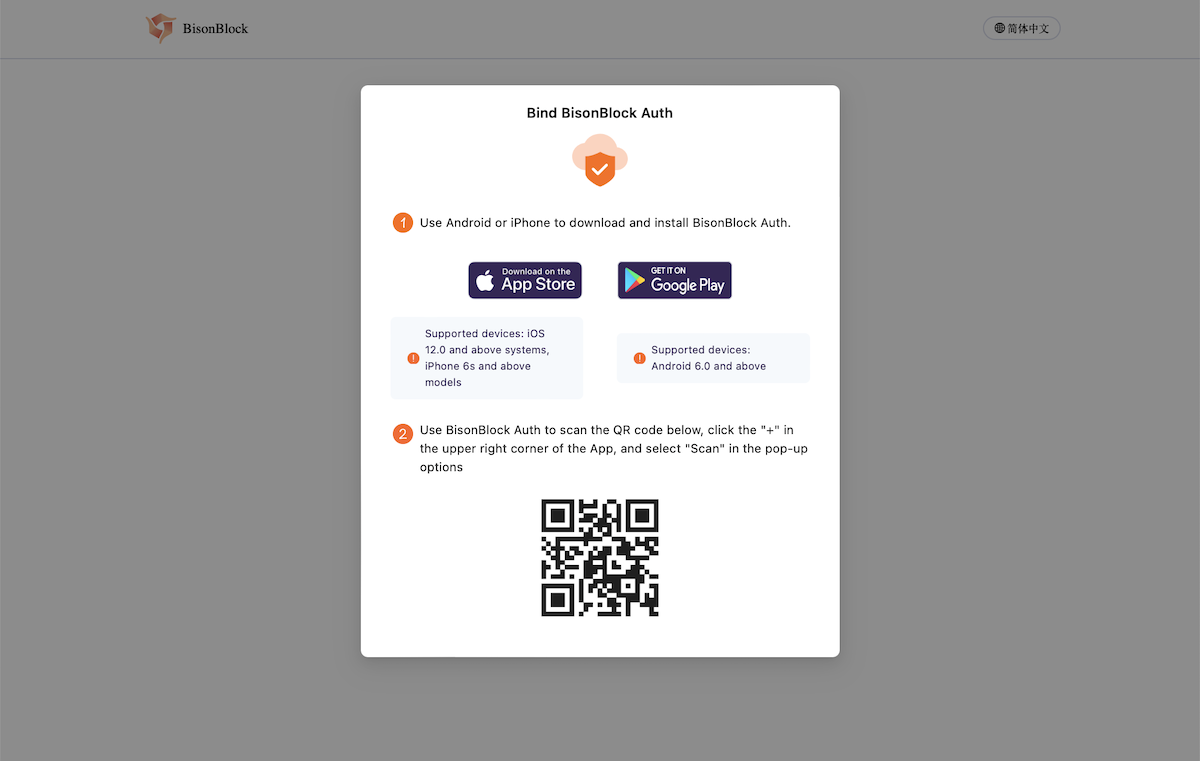
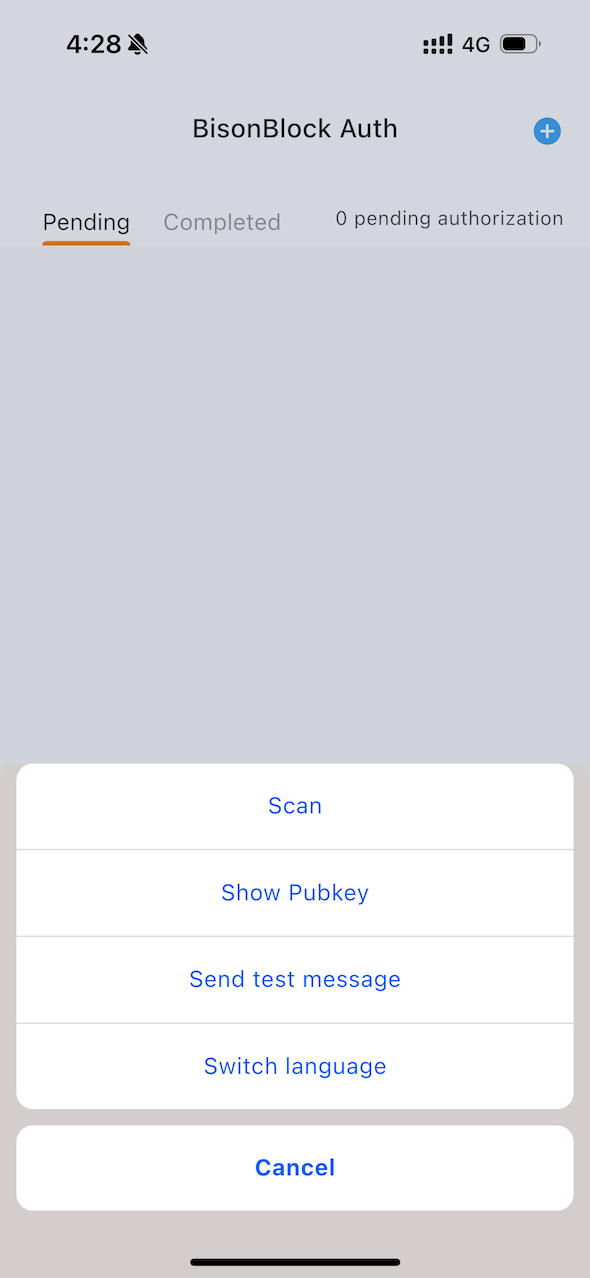
      <Frame caption="Open your BisonBlock Auth app, then scan the QR code with it">
        <img src="https://mintcdn.com/bisontech/1W93cv28bnIdcgKT/images/tutorial-active-auth.png?fit=max&auto=format&n=1W93cv28bnIdcgKT&q=85&s=1264b588399f9a2bfaf2bccb7c649504" width="1200" height="761" data-path="images/tutorial-active-auth.png" />
      </Frame>

      <CardGroup cols={3}>
        <Card title="Menu → Scan">
          <img src="https://mintcdn.com/bisontech/1W93cv28bnIdcgKT/images/app-active-scan.png?fit=max&auto=format&n=1W93cv28bnIdcgKT&q=85&s=08914de8cac91de2b28a7c5ab0d039cf" width="590" height="1278" data-path="images/app-active-scan.png" />
        </Card>

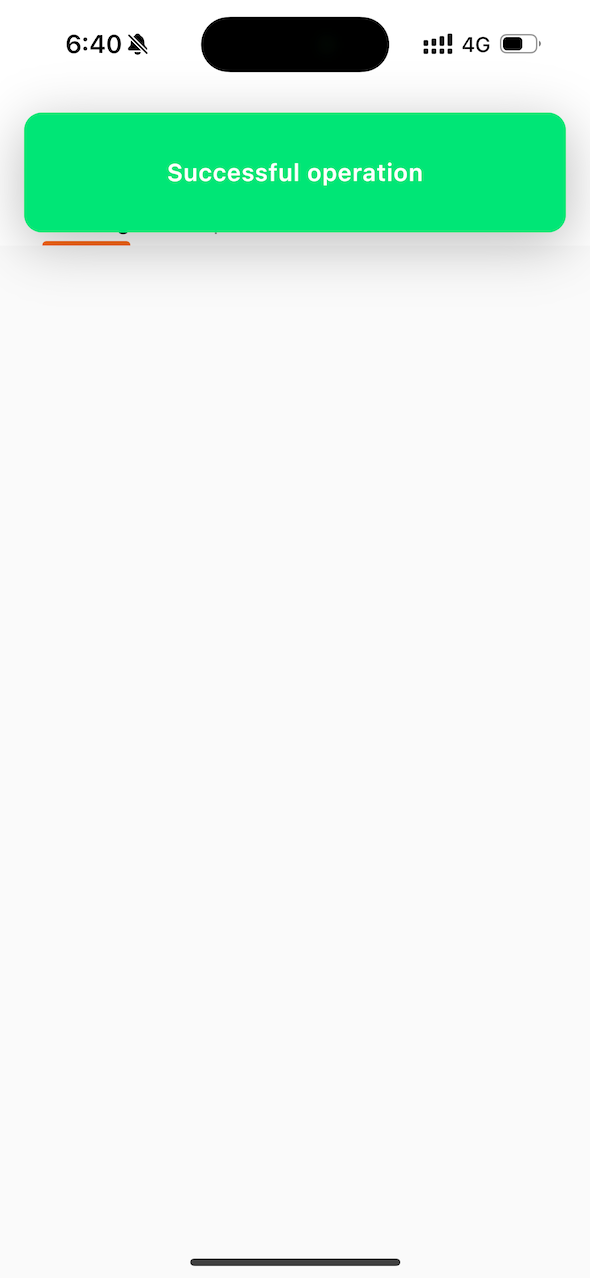
        <Card title="Successful">
          <img src="https://mintcdn.com/bisontech/1W93cv28bnIdcgKT/images/app-active-success.png?fit=max&auto=format&n=1W93cv28bnIdcgKT&q=85&s=bb096a77e94b5cae945186c822a76ab0" width="590" height="1278" data-path="images/app-active-success.png" />
        </Card>

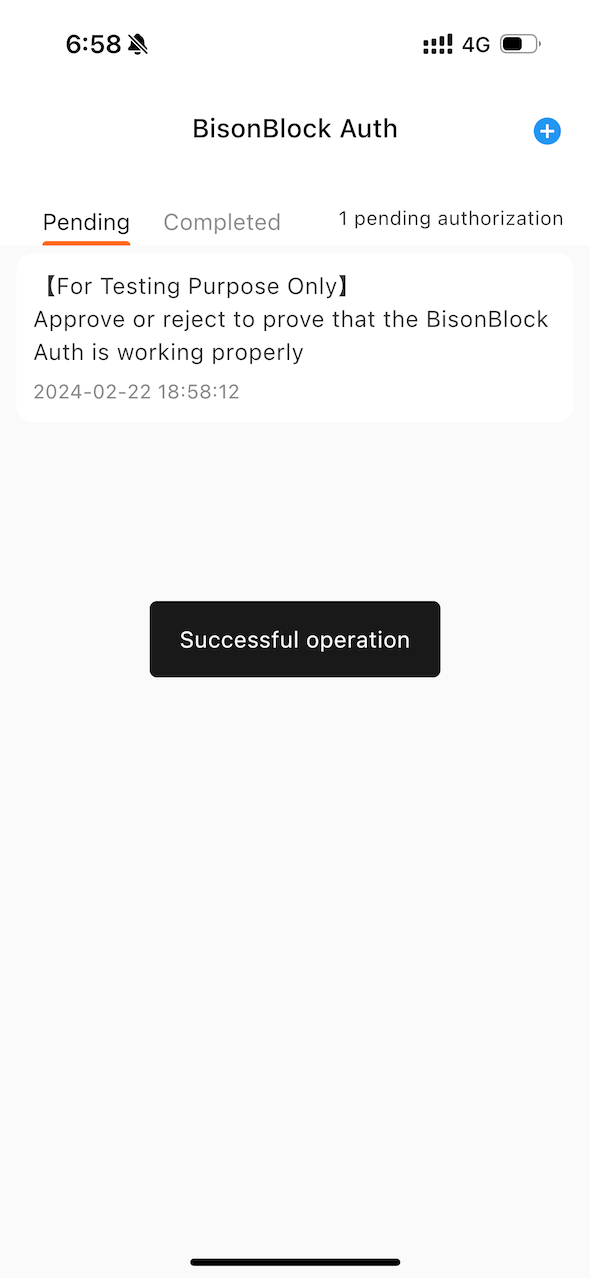
        <Card title="Send test msg">
          <img src="https://mintcdn.com/bisontech/1W93cv28bnIdcgKT/images/app-active-test.png?fit=max&auto=format&n=1W93cv28bnIdcgKT&q=85&s=27753927ea51e7913767269df00a7d7a" width="590" height="1278" data-path="images/app-active-test.png" />
        </Card>
      </CardGroup>

      Return to the web page. It will shows the binding is successful.
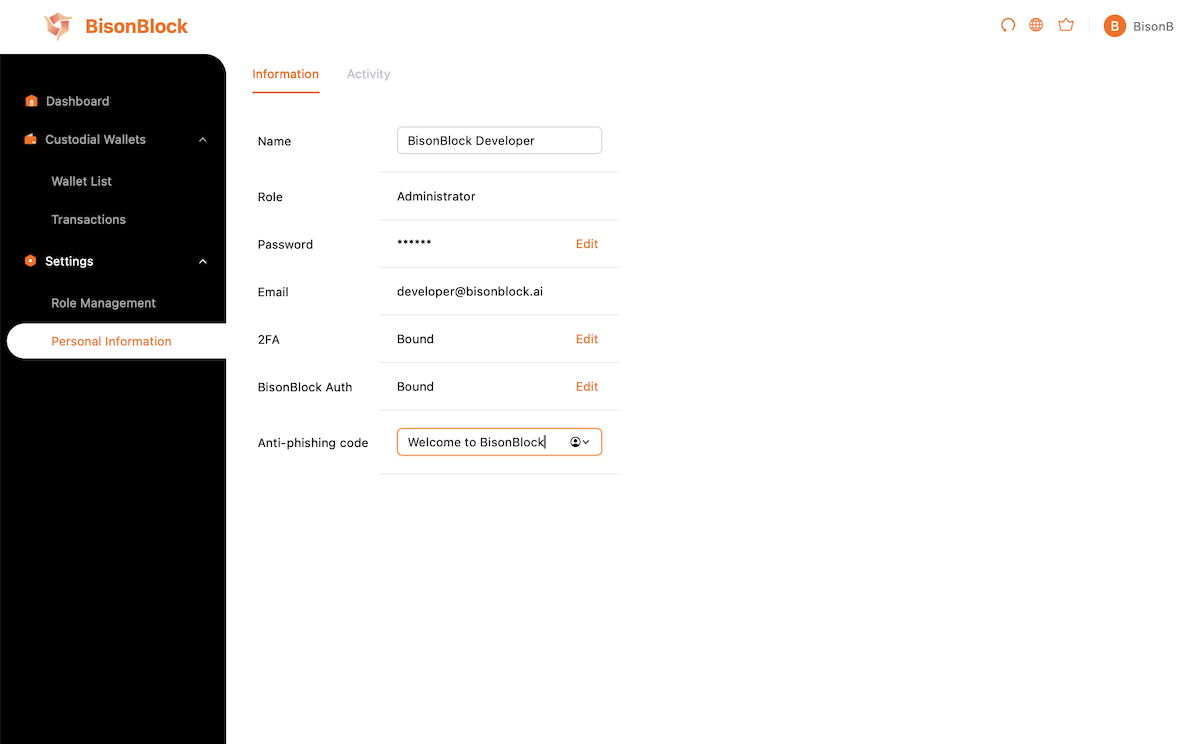
      <Frame caption="Display name and anti-phishing code could be changed">
        <img src="https://mintcdn.com/bisontech/1W93cv28bnIdcgKT/images/tutorial-profile.png?fit=max&auto=format&n=1W93cv28bnIdcgKT&q=85&s=2e44191d43c5f24ad6a80523f800f1e8" width="1200" height="744" data-path="images/tutorial-profile.png" />
      </Frame>
    </Accordion>
  </Step>

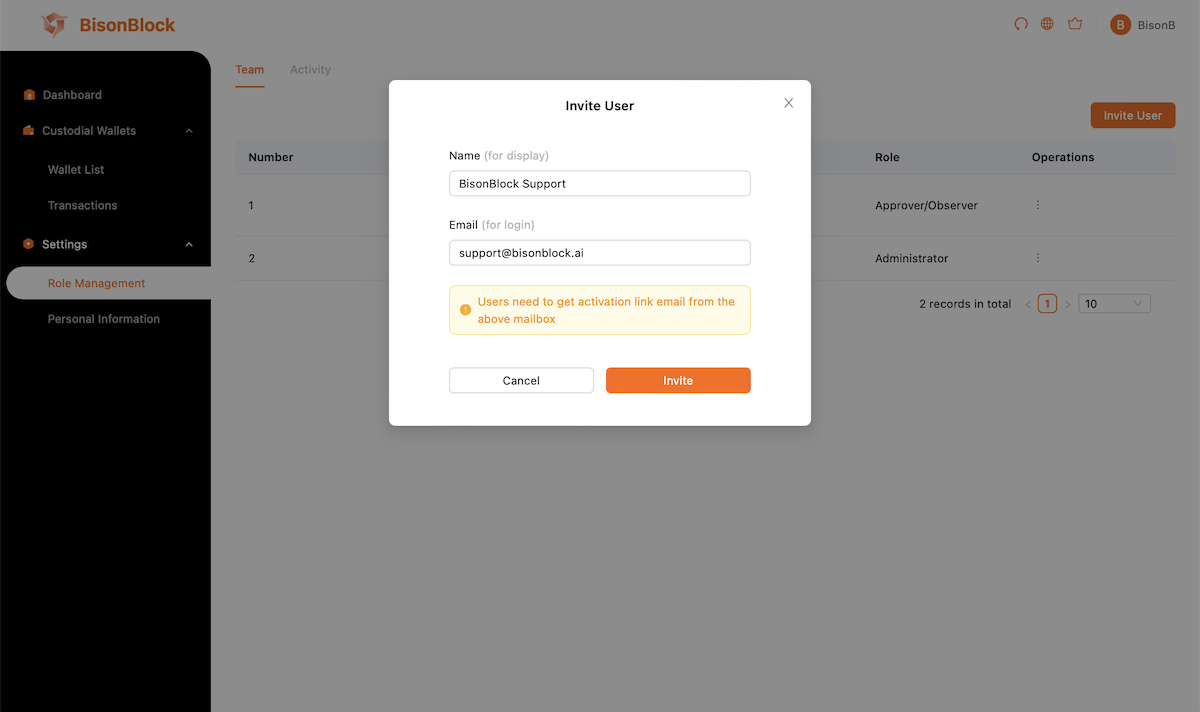
  <Step title="Invite team members">
    Your can invite your team members to join your organization.
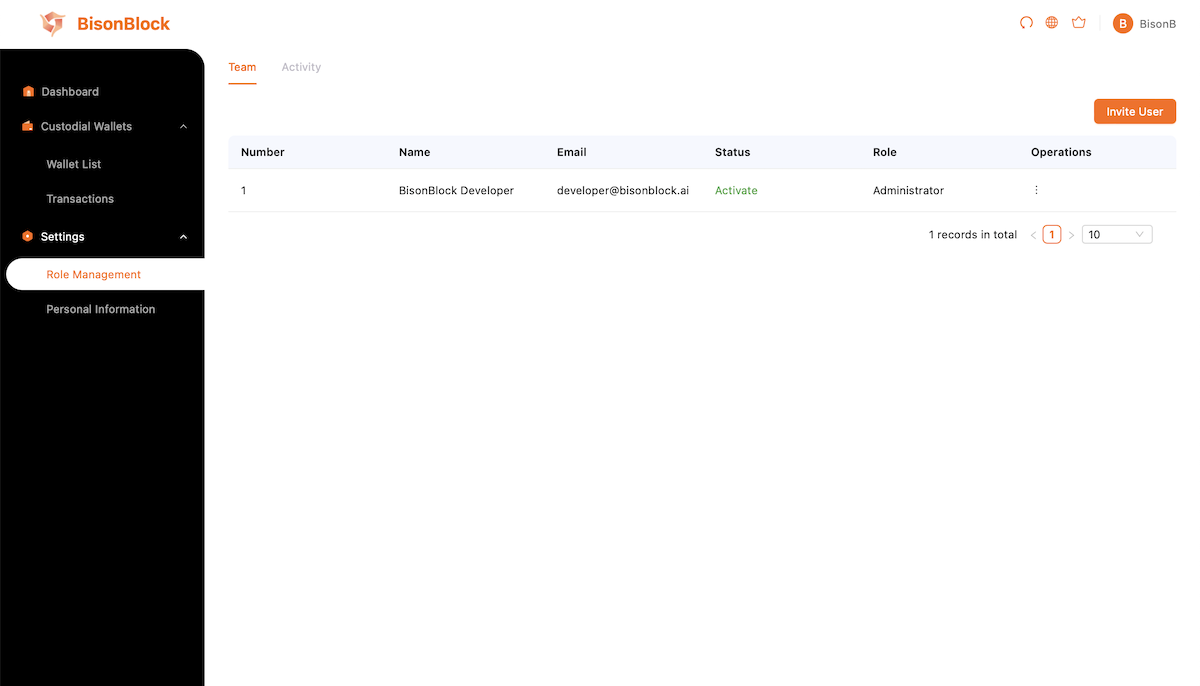
    <Accordion icon="1" iconType="duotone" title="Invite with members' email">
      <Frame caption="Open the page of team members">
        <img src="https://mintcdn.com/bisontech/1W93cv28bnIdcgKT/images/tutorial-team-members.png?fit=max&auto=format&n=1W93cv28bnIdcgKT&q=85&s=acad0c79faa8fab975919d3c75500358" width="1200" height="686" data-path="images/tutorial-team-members.png" />
      </Frame>

      <br />

      <Frame caption="Click 'Invite User', then Input name and email address">
        <img src="https://mintcdn.com/bisontech/1W93cv28bnIdcgKT/images/tutorial-team-invite.png?fit=max&auto=format&n=1W93cv28bnIdcgKT&q=85&s=192eedb7f0064b71aac490e482e6dabb" width="1200" height="712" data-path="images/tutorial-team-invite.png" />
      </Frame>

      <br />

      <Frame caption="New members are inactived, ask them follow the activation progress">
        <img src="https://mintcdn.com/bisontech/1W93cv28bnIdcgKT/images/tutorial-team-inactived.png?fit=max&auto=format&n=1W93cv28bnIdcgKT&q=85&s=49b63bbc2106722636ad013801fc4199" width="1200" height="682" data-path="images/tutorial-team-inactived.png" />
      </Frame>
    </Accordion>

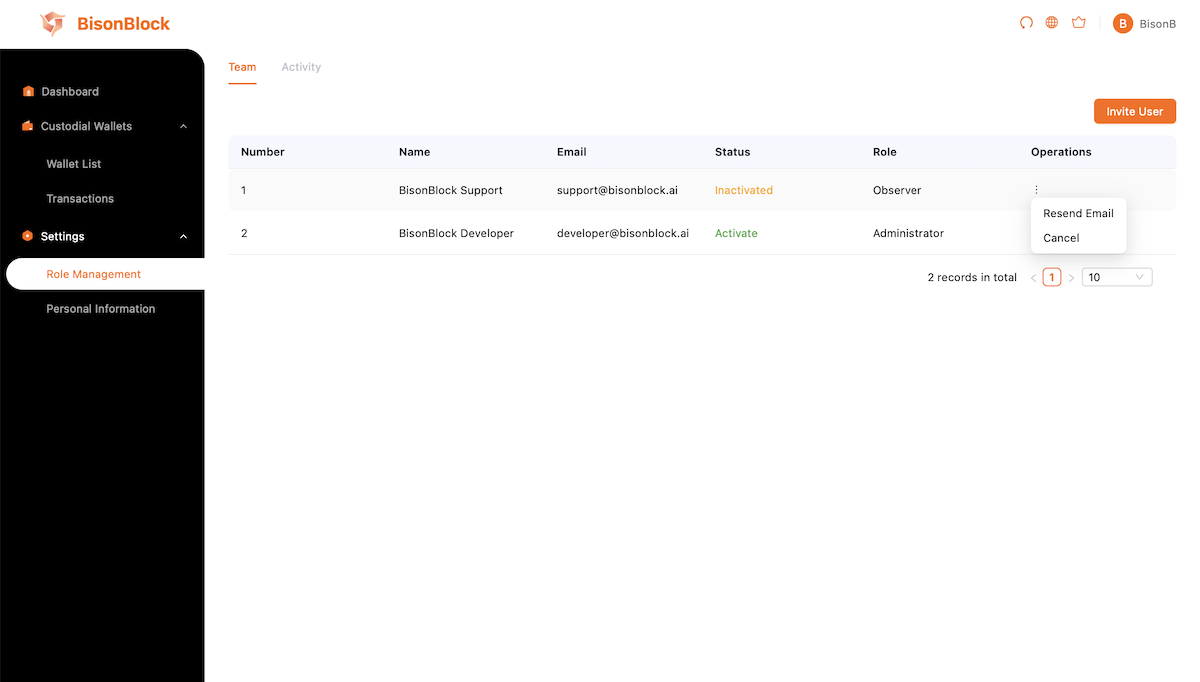
    <Accordion icon="2" iconType="duotone" title="Change members' role">
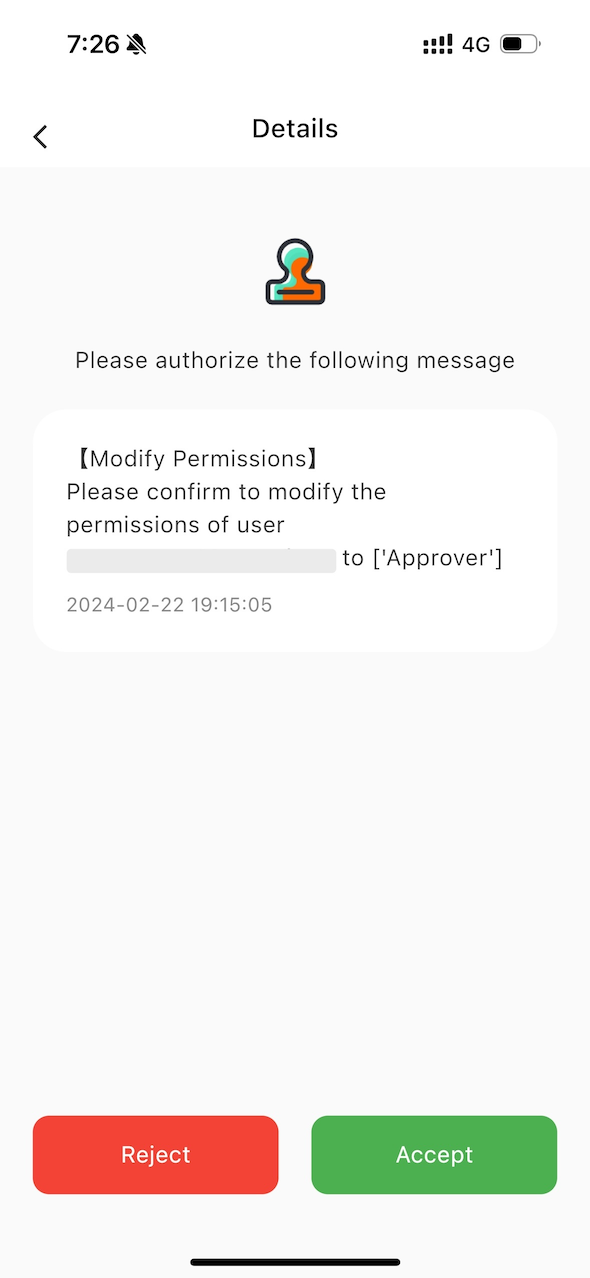
      Click the 'Edit role' item in 'Operations' menu. Choose the roles you want to assign to the member, then approve the change.
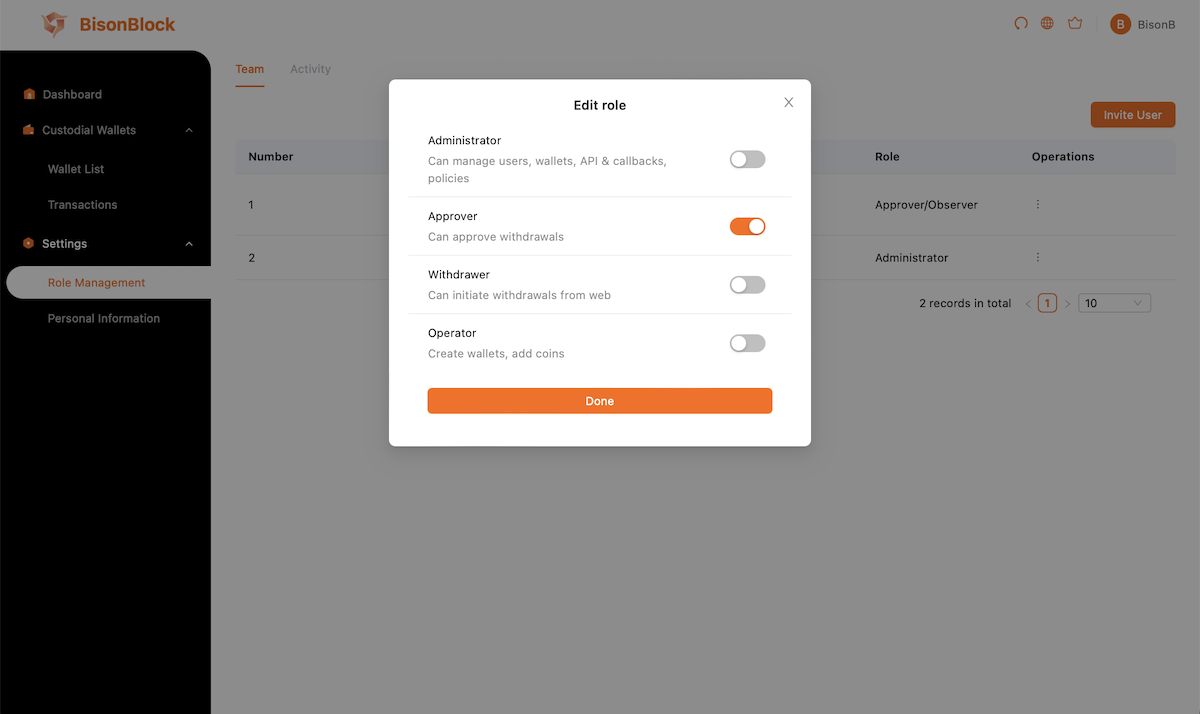
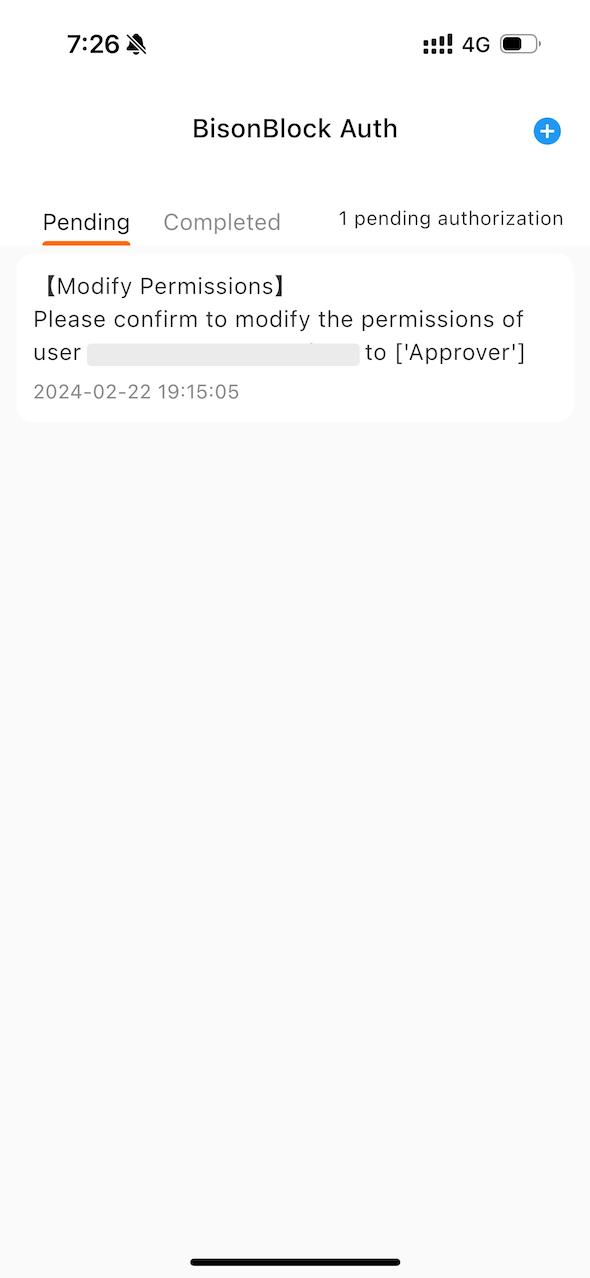
      <Frame caption="Multiple roles can be selected">
        <img src="https://mintcdn.com/bisontech/1W93cv28bnIdcgKT/images/tutorial-team-changerole.png?fit=max&auto=format&n=1W93cv28bnIdcgKT&q=85&s=a82612d96be214c14e83ab8fddcd0292" width="1200" height="714" data-path="images/tutorial-team-changerole.png" />
      </Frame>

      <br />

      <CardGroup cols={2}>
        <Card>
          <img src="https://mintcdn.com/bisontech/1W93cv28bnIdcgKT/images/app-role-list.png?fit=max&auto=format&n=1W93cv28bnIdcgKT&q=85&s=3f2d94936c4a3847e2e162dedcbeb1d4" width="590" height="1278" data-path="images/app-role-list.png" />
        </Card>

        <Card>
          <img src="https://mintcdn.com/bisontech/1W93cv28bnIdcgKT/images/app-role-detail.png?fit=max&auto=format&n=1W93cv28bnIdcgKT&q=85&s=ad2f422639f4d45c2d497b59154e8ccb" width="590" height="1278" data-path="images/app-role-detail.png" />
        </Card>
      </CardGroup>

      <Info>**Attention:** If an `Administrator` role is assigned, you must ask our support for approval, additionally.</Info>
    </Accordion>
  </Step>
</Steps>

## II. Configuring Wallets and Coins
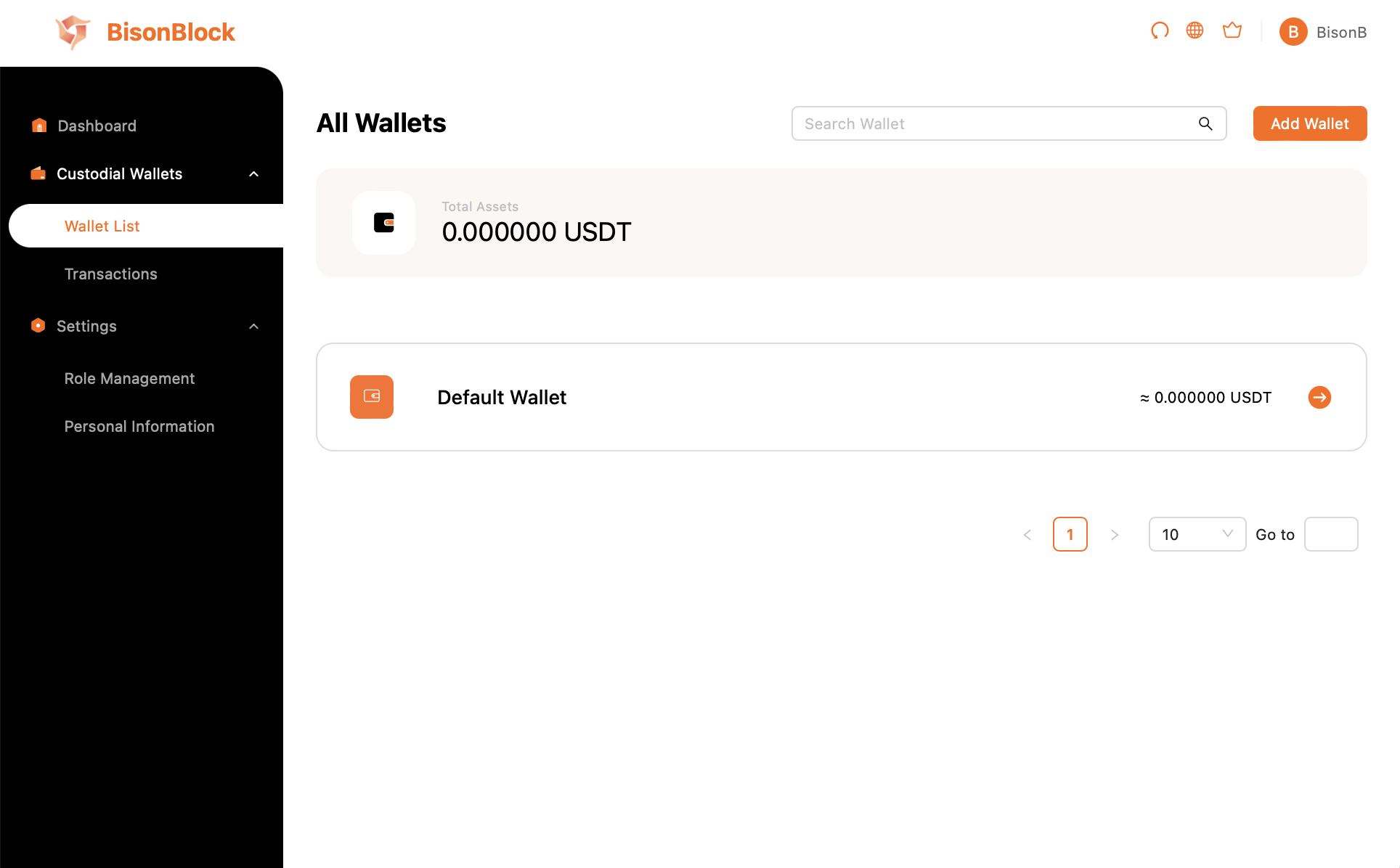
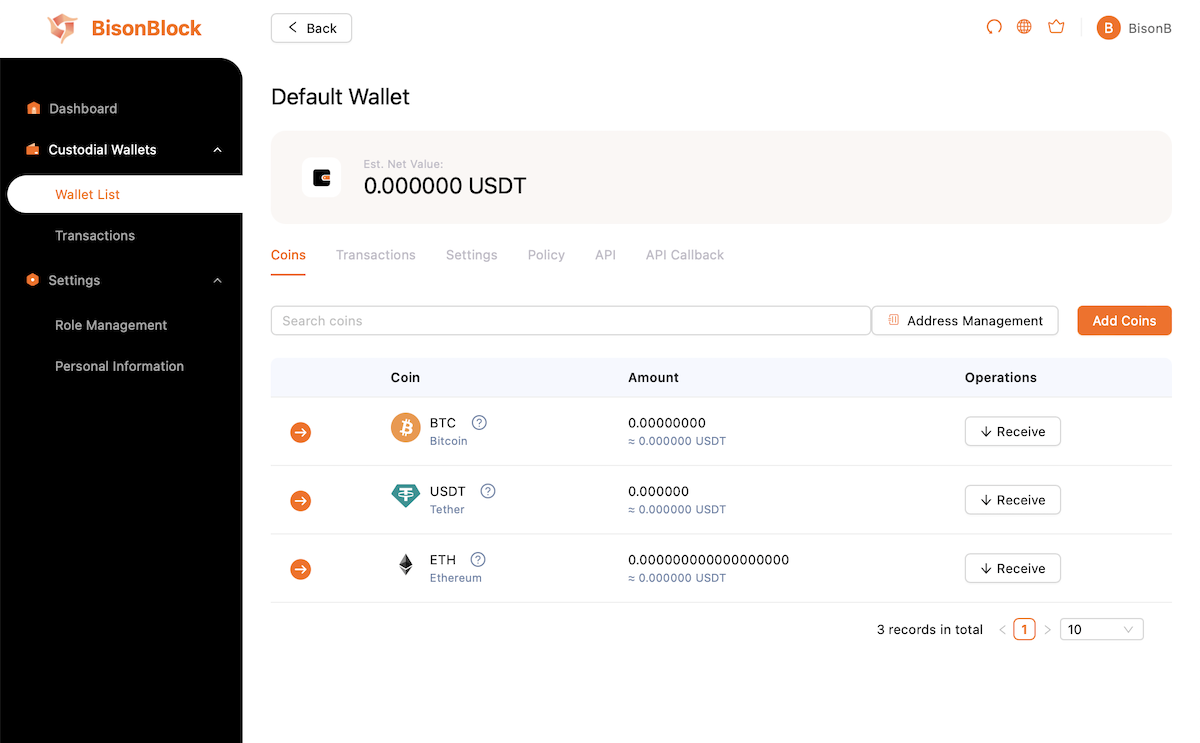
<Frame caption="A default wallet was created">
  <img src="https://mintcdn.com/bisontech/1W93cv28bnIdcgKT/images/tutorial-wallet-list.png?fit=max&auto=format&n=1W93cv28bnIdcgKT&q=85&s=f396b57e86c7cc7f25b485dc2956f44c" width="1928" height="1196" data-path="images/tutorial-wallet-list.png" />
</Frame>

<br />

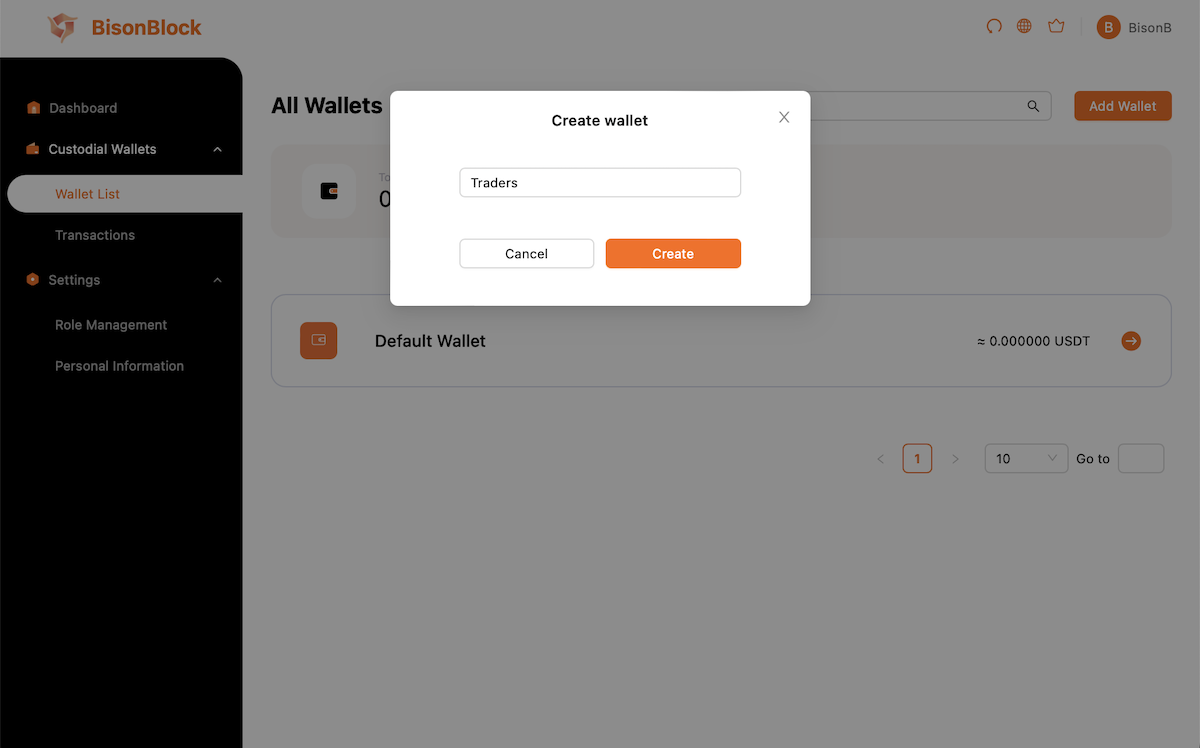
<Frame caption="Create more wallets for isolation">
  <img src="https://mintcdn.com/bisontech/1W93cv28bnIdcgKT/images/tutorial-wallet-create.png?fit=max&auto=format&n=1W93cv28bnIdcgKT&q=85&s=e425f2e4c43b2feffcd48578691611ad" width="1200" height="748" data-path="images/tutorial-wallet-create.png" />
</Frame>

<br />

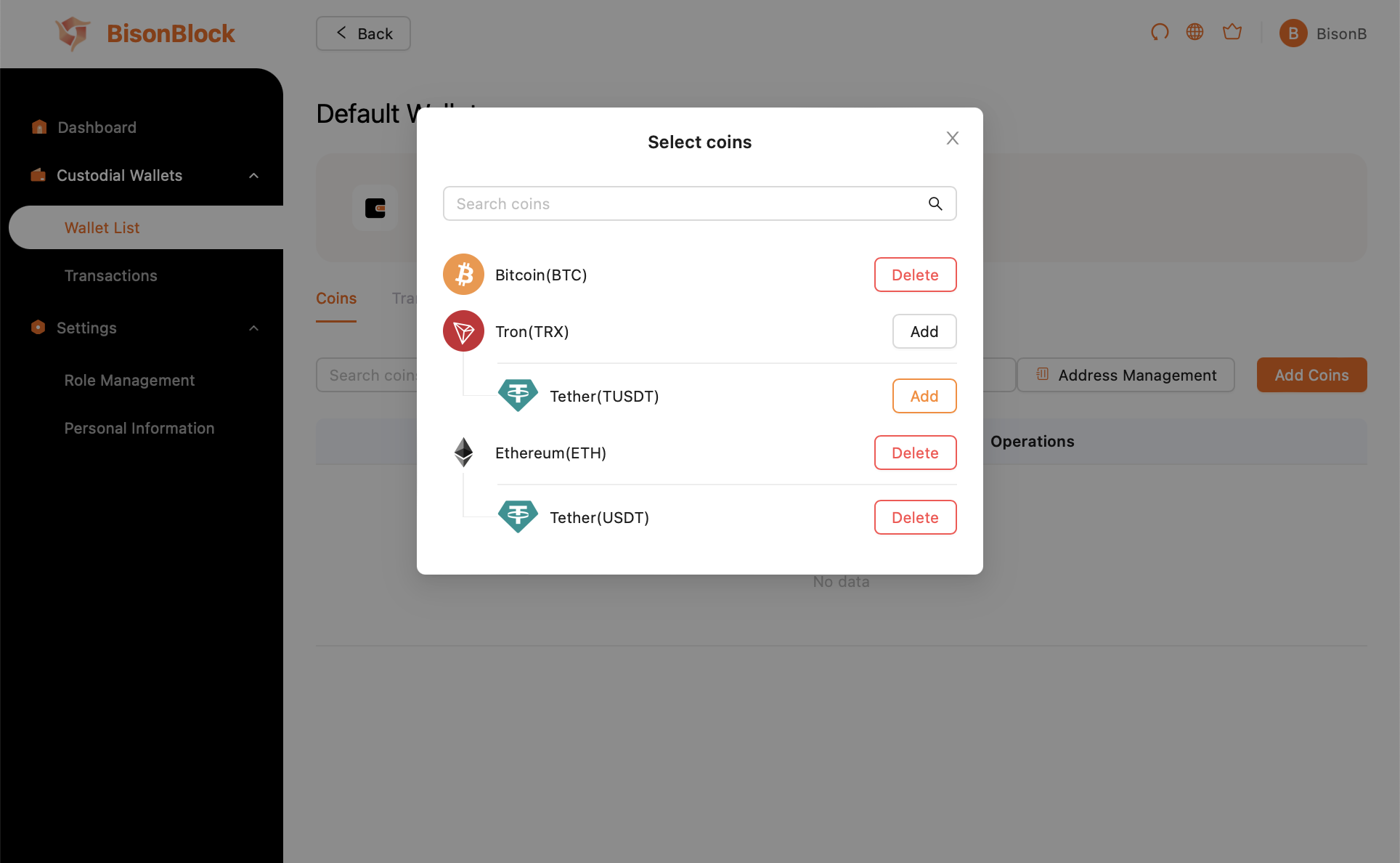
<Frame caption="Select coins grouped by chain">
  <img src="https://mintcdn.com/bisontech/1W93cv28bnIdcgKT/images/tutorial-coins-add.png?fit=max&auto=format&n=1W93cv28bnIdcgKT&q=85&s=c05633f4df42301a87135624945d842b" width="1928" height="1188" data-path="images/tutorial-coins-add.png" />
</Frame>

<br />

<Frame caption="Coins added">
  <img src="https://mintcdn.com/bisontech/1W93cv28bnIdcgKT/images/tutorial-coins-list.png?fit=max&auto=format&n=1W93cv28bnIdcgKT&q=85&s=dc2857e0197d349c775ab621dd16d585" width="1200" height="743" data-path="images/tutorial-coins-list.png" />
</Frame>

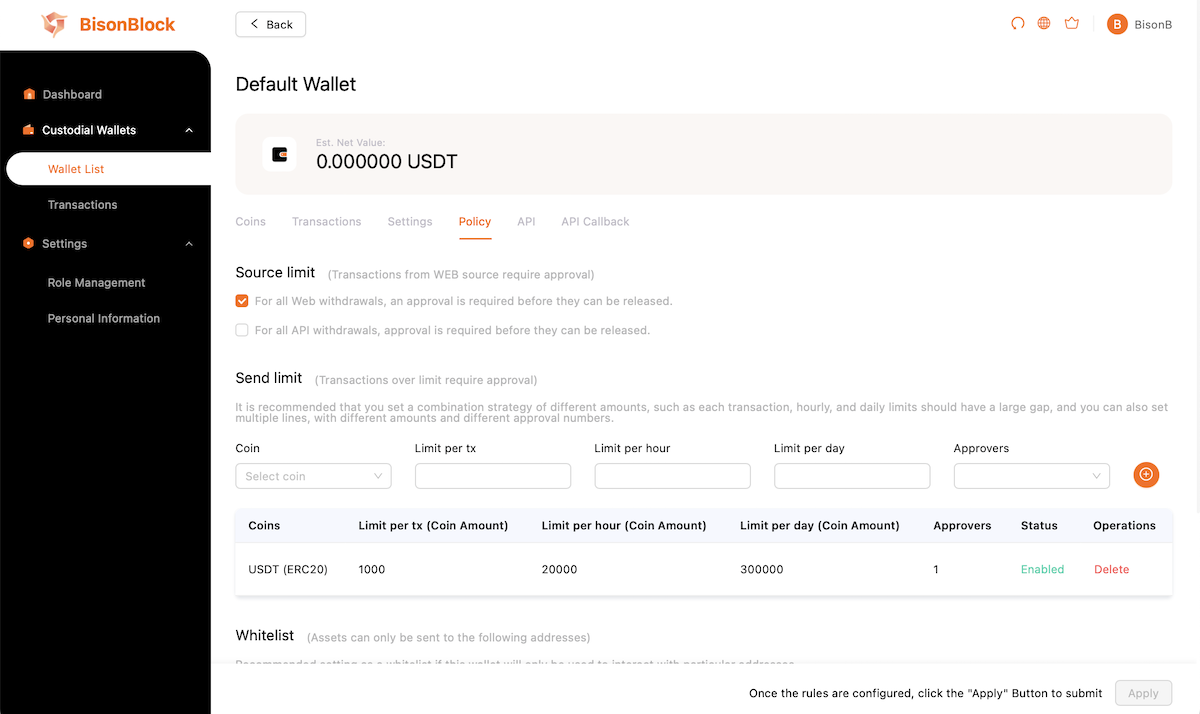
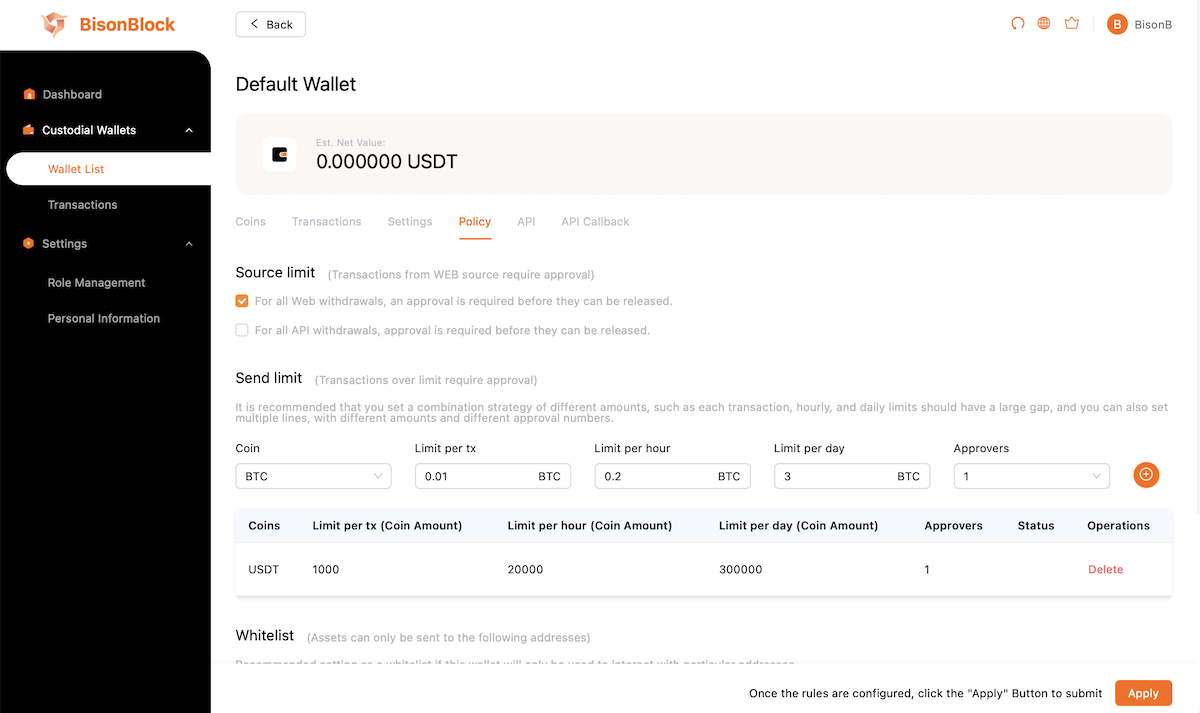
## III. Configuring Risk-Control Policies
<Frame>
  <img src="https://mintcdn.com/bisontech/1W93cv28bnIdcgKT/images/tutorial-policy-list.png?fit=max&auto=format&n=1W93cv28bnIdcgKT&q=85&s=c35234be65a86825e04f756a898073da" width="1200" height="713" data-path="images/tutorial-policy-list.png" />
</Frame>

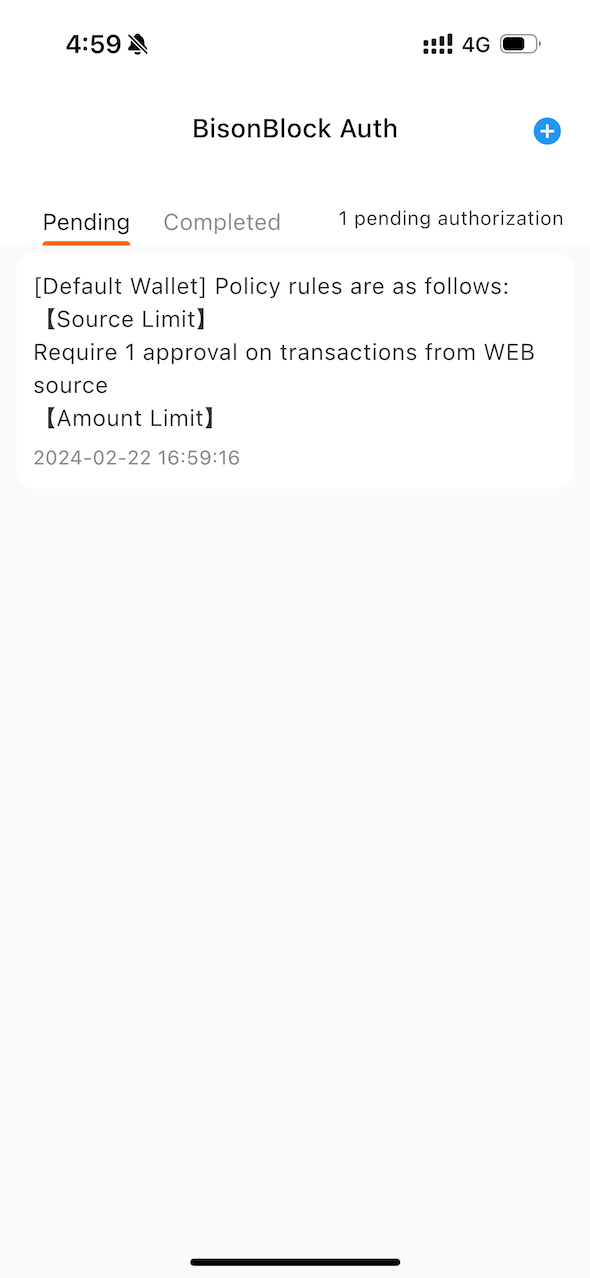
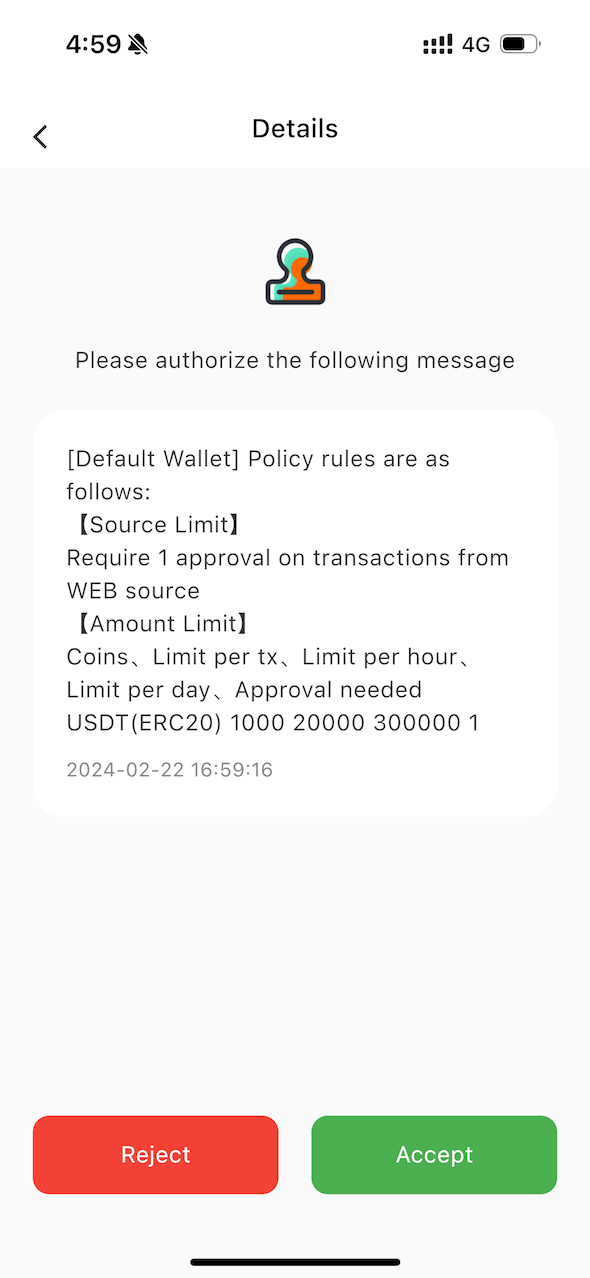
<CardGroup cols={2}>
  <Card>
    <img src="https://mintcdn.com/bisontech/1W93cv28bnIdcgKT/images/app-policy-list.png?fit=max&auto=format&n=1W93cv28bnIdcgKT&q=85&s=6f29bd8c4fd07067cbf61199044c9765" width="590" height="1278" data-path="images/app-policy-list.png" />
  </Card>

  <Card>
    <img src="https://mintcdn.com/bisontech/1W93cv28bnIdcgKT/images/app-policy-detail.png?fit=max&auto=format&n=1W93cv28bnIdcgKT&q=85&s=537486e2523542c408565febd91d948e" width="590" height="1278" data-path="images/app-policy-detail.png" />
  </Card>
</CardGroup>

<Frame>
  <img src="https://mintcdn.com/bisontech/1W93cv28bnIdcgKT/images/tutorial-policy-enabled.png?fit=max&auto=format&n=1W93cv28bnIdcgKT&q=85&s=8b0ed1de428a23385ad588680a0893dd" width="1200" height="714" data-path="images/tutorial-policy-enabled.png" />
</Frame>

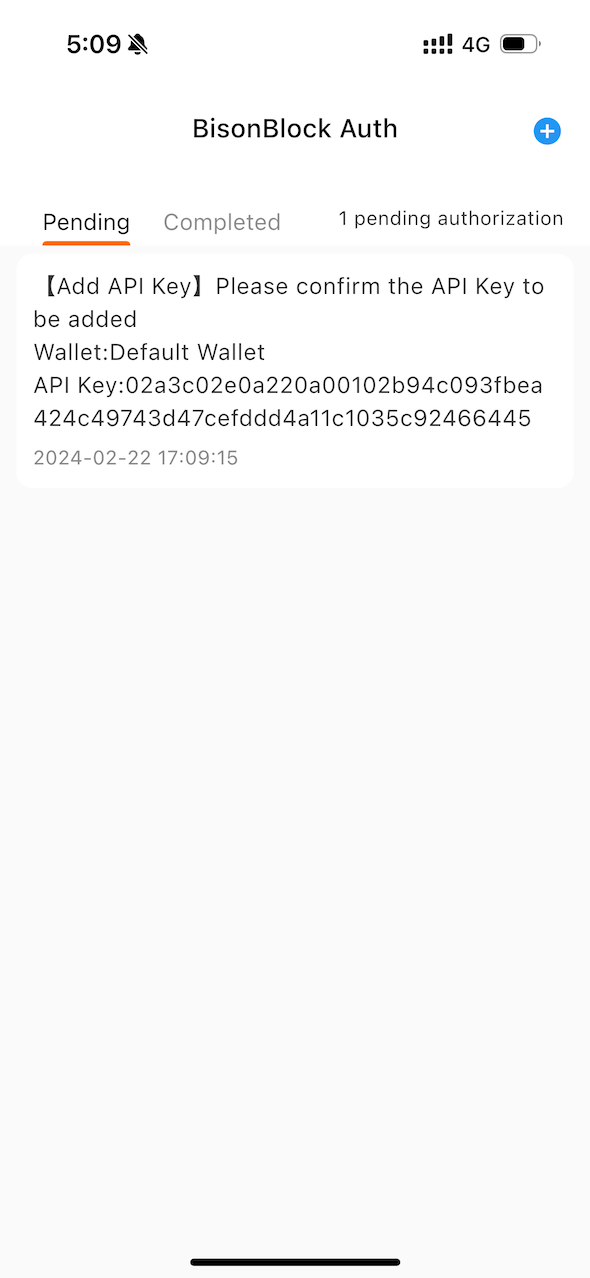
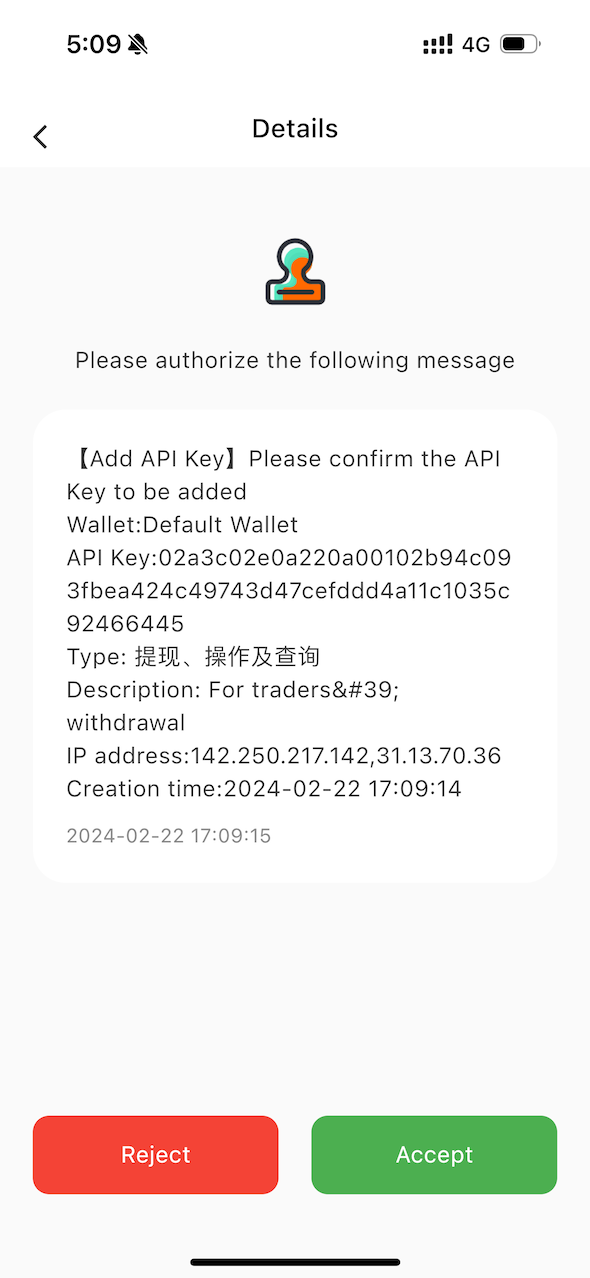
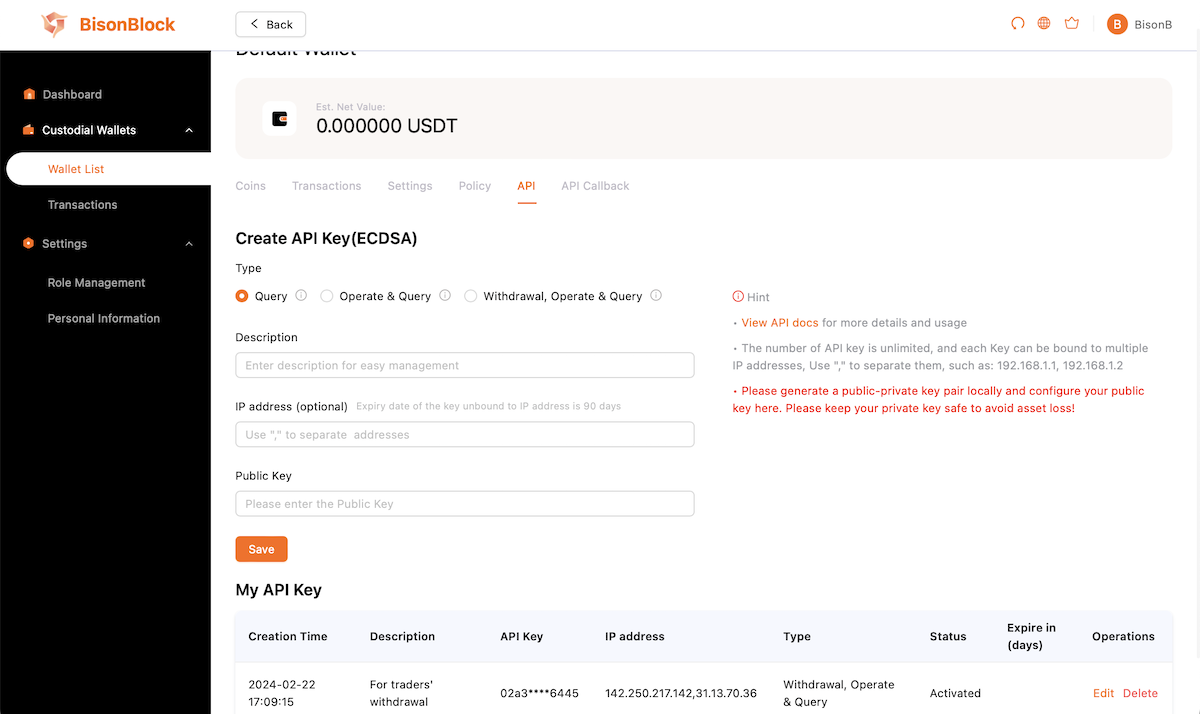
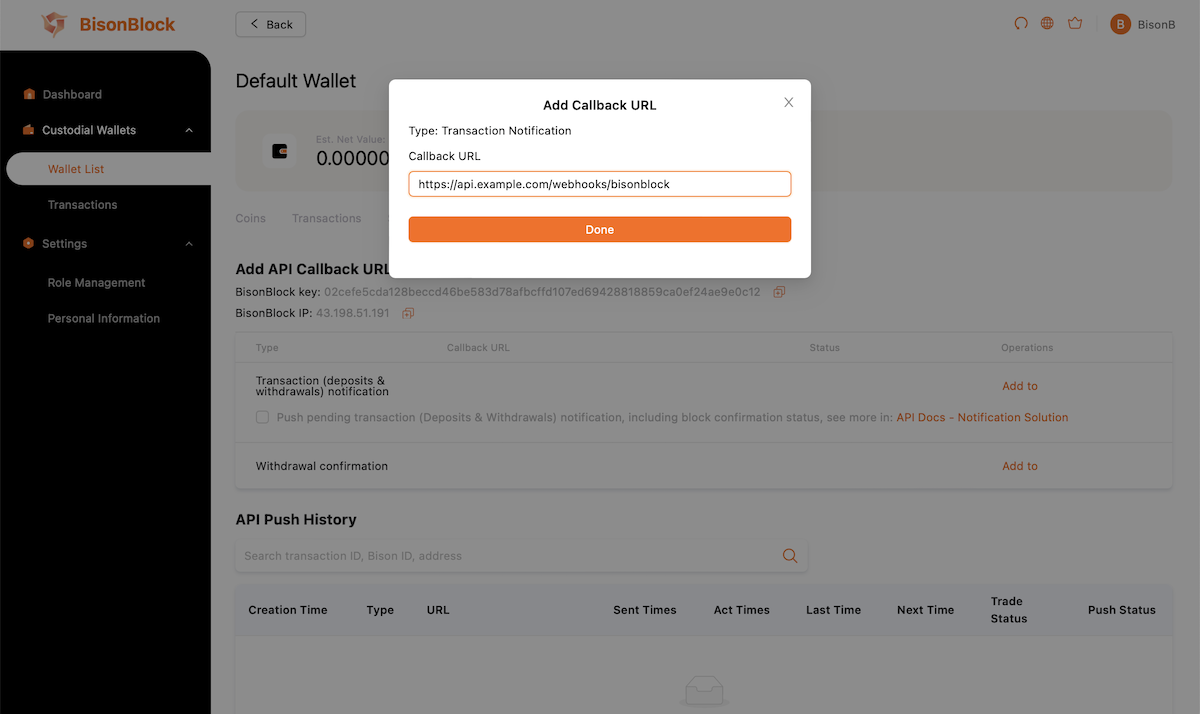
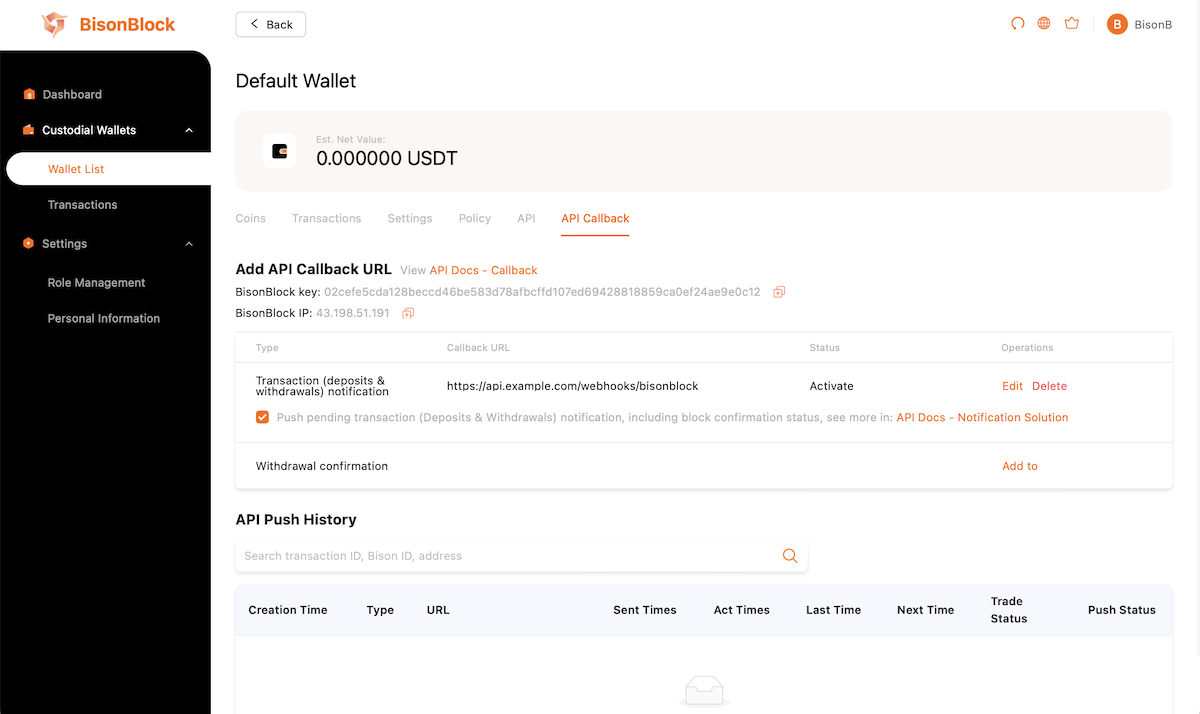
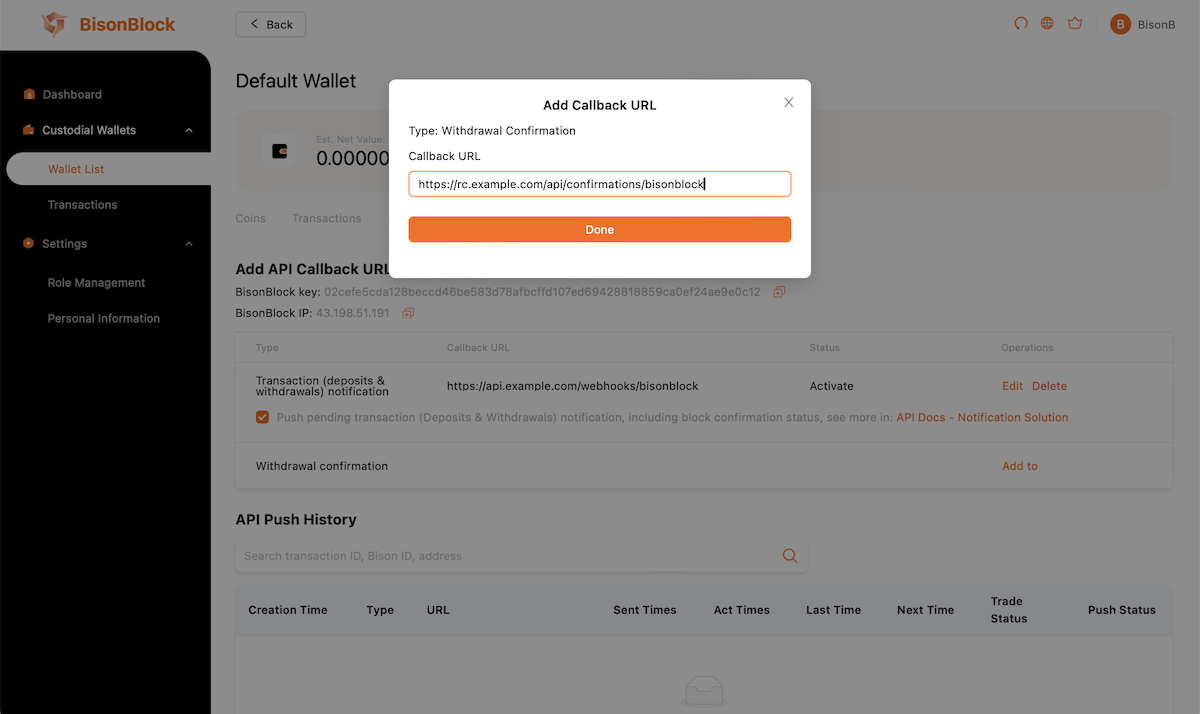
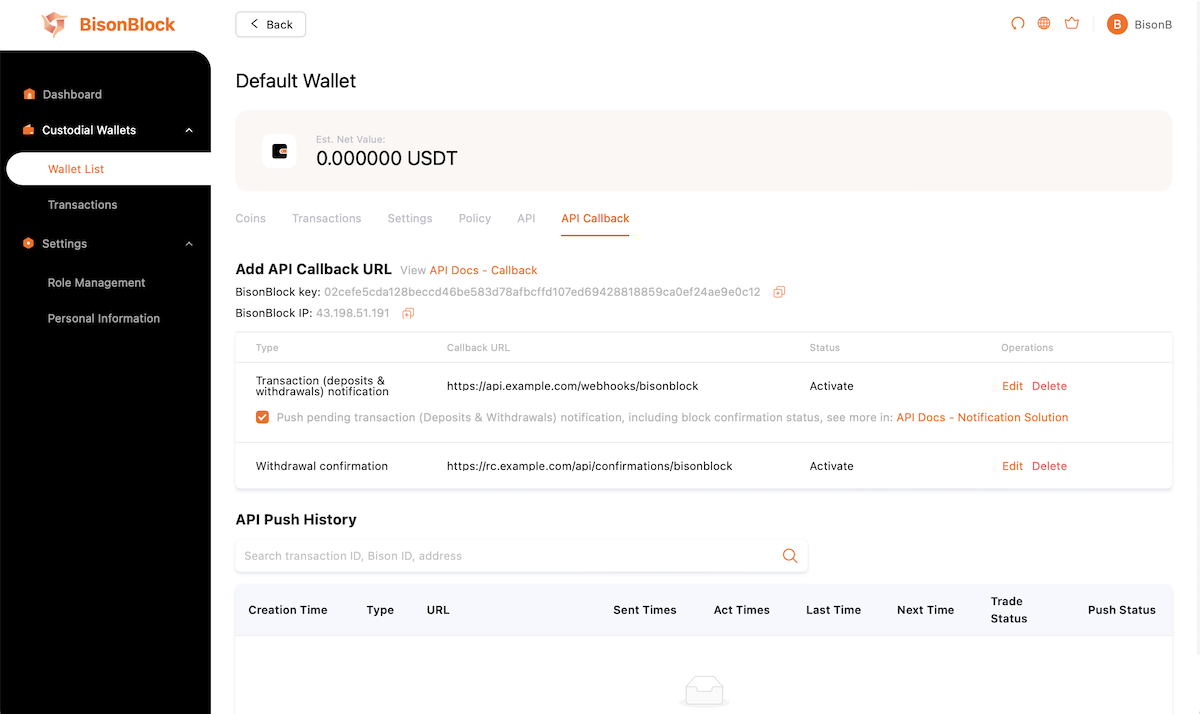
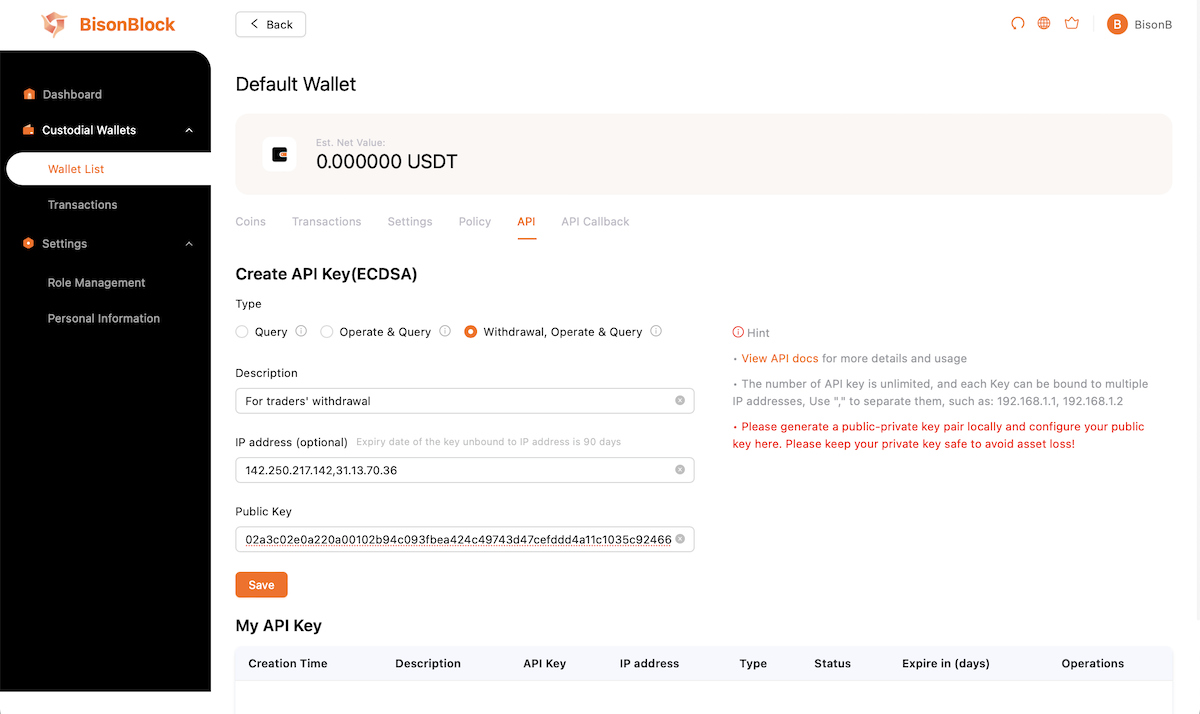
## IV. Setting Up API Keys and Callback
<Frame>
  <img src="https://mintcdn.com/bisontech/1W93cv28bnIdcgKT/images/tutorial-apikey-add.png?fit=max&auto=format&n=1W93cv28bnIdcgKT&q=85&s=0bca5d15e42a7f59e170dfd54bf958eb" width="1200" height="714" data-path="images/tutorial-apikey-add.png" />
</Frame>

<CardGroup cols={2}>
  <Card>
    <img src="https://mintcdn.com/bisontech/1W93cv28bnIdcgKT/images/app-apikey-list.png?fit=max&auto=format&n=1W93cv28bnIdcgKT&q=85&s=3722d594fbf055548a56b7fec4591501" width="590" height="1278" data-path="images/app-apikey-list.png" />
  </Card>

  <Card>
    <img src="https://mintcdn.com/bisontech/1W93cv28bnIdcgKT/images/app-apikey-detail.png?fit=max&auto=format&n=1W93cv28bnIdcgKT&q=85&s=5ba60c4b4c73aa9d9219fa0b3fc9b92b" width="590" height="1278" data-path="images/app-apikey-detail.png" />
  </Card>
</CardGroup>

<Frame>
  <img src="https://mintcdn.com/bisontech/1W93cv28bnIdcgKT/images/tutorial-apikey-actived.png?fit=max&auto=format&n=1W93cv28bnIdcgKT&q=85&s=3d27dfcc6c41a56803b5f037fdb0c464" width="1200" height="714" data-path="images/tutorial-apikey-actived.png" />
</Frame>

<br />

<Frame>
  <img src="https://mintcdn.com/bisontech/1W93cv28bnIdcgKT/images/tutorial-webhook-add.png?fit=max&auto=format&n=1W93cv28bnIdcgKT&q=85&s=a95b6c7b1f0a0ca321b74e37786fa053" width="1200" height="714" data-path="images/tutorial-webhook-add.png" />
</Frame>

<br />

<Frame>
  <img src="https://mintcdn.com/bisontech/1W93cv28bnIdcgKT/images/tutorial-webhook-actived.png?fit=max&auto=format&n=1W93cv28bnIdcgKT&q=85&s=73ba6ff6f7d44911e3b6abbbf1947e62" width="1200" height="714" data-path="images/tutorial-webhook-actived.png" />
</Frame>

<br />

<Frame>
  <img src="https://mintcdn.com/bisontech/1W93cv28bnIdcgKT/images/tutorial-withdraw-confirm-add.png?fit=max&auto=format&n=1W93cv28bnIdcgKT&q=85&s=52192bdc17db7c26e784b9217b103621" width="1200" height="714" data-path="images/tutorial-withdraw-confirm-add.png" />
</Frame>

<br />

<Frame>
  <img src="https://mintcdn.com/bisontech/1W93cv28bnIdcgKT/images/tutorial-withdraw-confirm-actived.png?fit=max&auto=format&n=1W93cv28bnIdcgKT&q=85&s=14730ec830135b96982c364a3b5afd69" width="1200" height="714" data-path="images/tutorial-withdraw-confirm-actived.png" />
</Frame>